iOS User-Agent Testing Guide
How to Test iOS WebView User-Agent Differences
User-Agent differences can change login, JSBridge calls, feature flags, download banners, API routing, and deep-link behavior. This guide shows how to compare Safari and iOS WebView branches on a real iPhone.
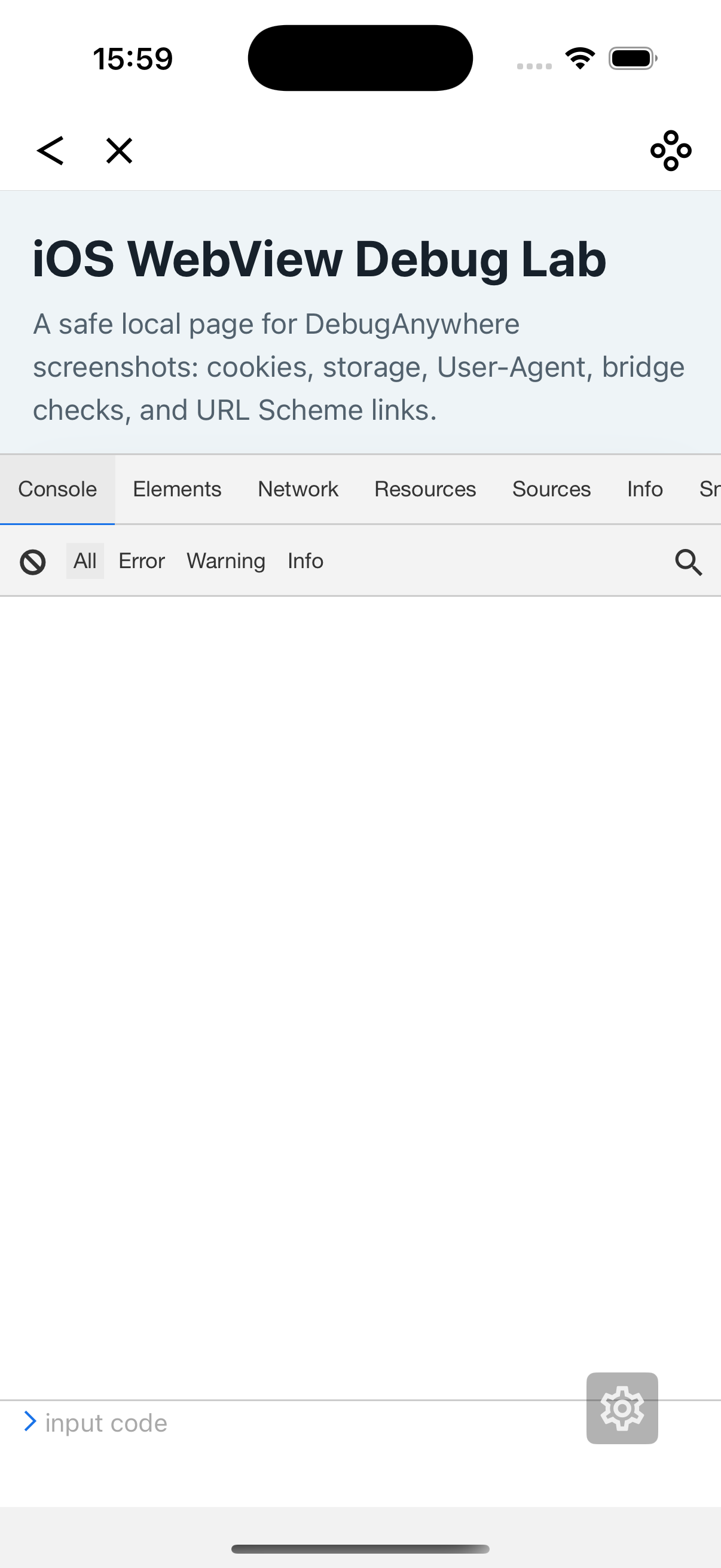
Quick answer: how to test iOS WebView User-Agent
Capture the User-Agent from Safari and the target iOS WebView, then load the same URL on a real iPhone with each value. Compare UI branches, request behavior, cookies, JSBridge calls, redirects, and feature flags. The goal is not only to see a different string, but to identify which product behavior changes because of that string.
What User-Agent changes can affect
User-Agent checks are fragile but common in mobile web apps. Teams use them to decide whether a page is inside an app, whether native login is available, whether to show an install banner, or whether to use an in-app payment flow.
- App-only UI and hidden browser-only banners.
- JSBridge method calls and native capability detection.
- OAuth, payment, and URL Scheme redirect behavior.
- API headers or environment parameters generated by app wrappers.
- Compatibility branches for iOS, Safari, or WKWebView.
A practical User-Agent testing workflow
1. Capture the baseline values
Start by logging User-Agent in Safari on iPhone and inside the target WebView. Keep the exact full string, including any app name, build version, channel, or custom token appended by the host app.
console.log('ua:', navigator.userAgent);
console.log('platform:', navigator.platform);
console.log('vendor:', navigator.vendor);
2. Load the same URL with each User-Agent
Use the same URL, query string, account, and network condition. If only the User-Agent changes, any difference in UI, requests, or redirect flow becomes easier to attribute.
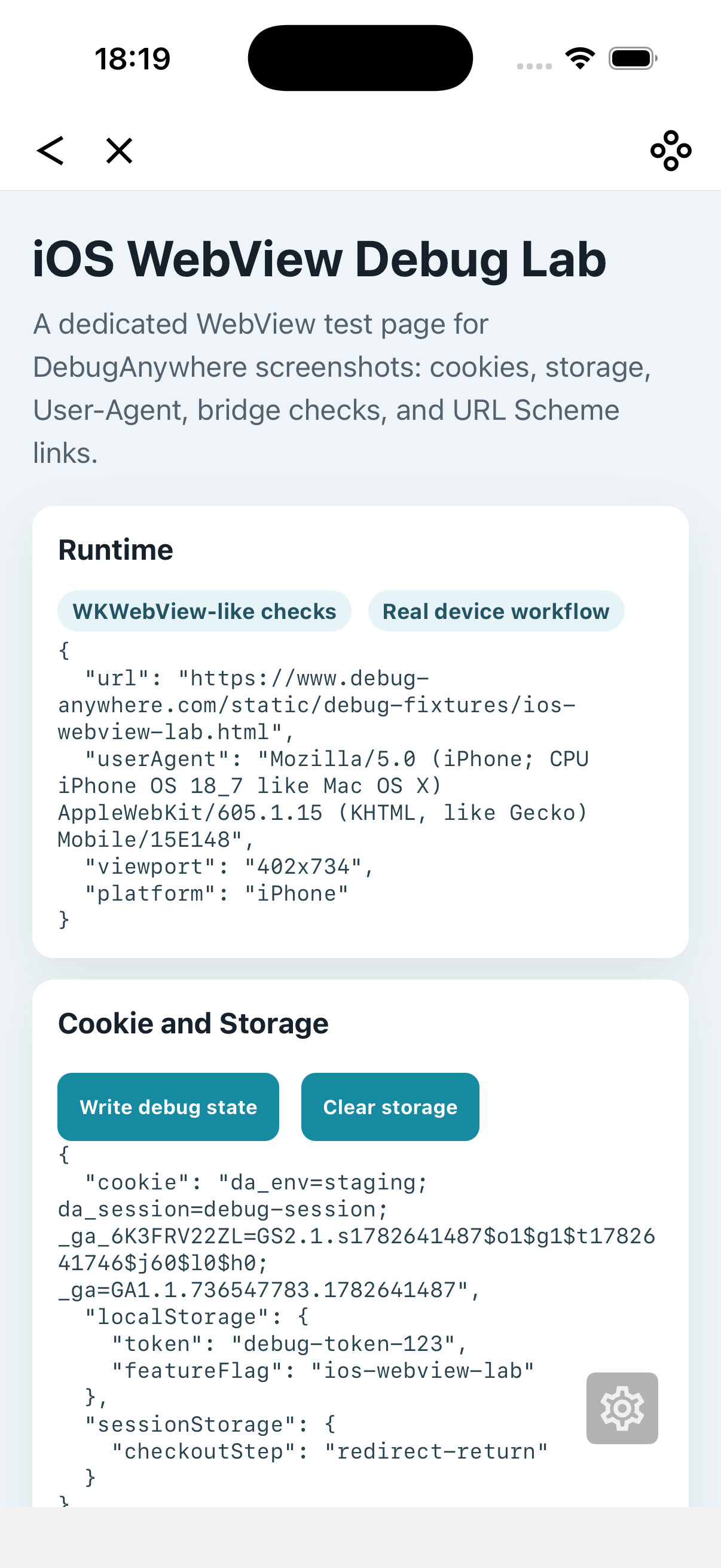
3. Compare network and storage
Check whether the User-Agent changes API host, page-load headers, cookies, or localStorage values. Some pages use the User-Agent to request app-only configuration, which then changes behavior later in the session.
4. Test JSBridge assumptions
A page may assume that an app User-Agent means a JSBridge is available. If the bridge object is missing, delayed, or named differently, app-only branches can fail even though User-Agent detection passed.
5. Replace User-Agent sniffing with capability checks where possible
For product code, prefer checking the actual capability when you can: bridge availability, feature config, native callback readiness, or an explicit environment flag. Keep User-Agent checks small and easy to test.
What to compare between Safari and WebView
| Area | Question | Signal |
|---|---|---|
| UI | Does the app branch show different controls? | Hidden banners, native buttons, app-only panels |
| Network | Do hosts or headers change? | Different API base URL, app version header, environment header |
| Storage | Does config change after load? | Feature flags, login mode, cached app environment |
| Bridge | Does the page call native APIs? | WKScriptMessageHandler names and bridge readiness |
FAQ
Many mobile pages use User-Agent checks to choose app login, JSBridge calls, download banners, payment flows, or feature flags. A WebView User-Agent can send the page down a different code path than Safari.
Compare rendered UI, request behavior, page-load headers, cookies, JSBridge usage, redirects, and feature flags between Safari on iPhone and the app WebView User-Agent.
Yes. DebugAnywhere can open the page on a real device with a custom User-Agent so you can reproduce app-like branches before requesting host-app changes.
iOS WebView User-Agent checklist
- Did you capture the exact Safari and WebView User-Agent strings?
- Are you testing the same URL, account, network, and query parameters?
- Does the User-Agent change the rendered UI?
- Do API hosts, headers, cookies, or feature flags change?
- Does an app User-Agent trigger JSBridge calls before the bridge is ready?
- Can the branch be tested with capability detection instead of string matching?
Switch iOS WebView User-Agent on a real iPhone
DebugAnywhere helps you open the same URL with different User-Agent values, inspect console output and request behavior, and verify whether a WebView-only code path is caused by User-Agent detection.