JavaScript Injection Guide
How to Inject JavaScript for Mobile Web Debugging
JavaScript injection is useful when you need to inspect runtime state, add temporary logging, patch a mobile-only condition, simulate a JSBridge callback, or verify a hypothesis without rebuilding the page or host app.
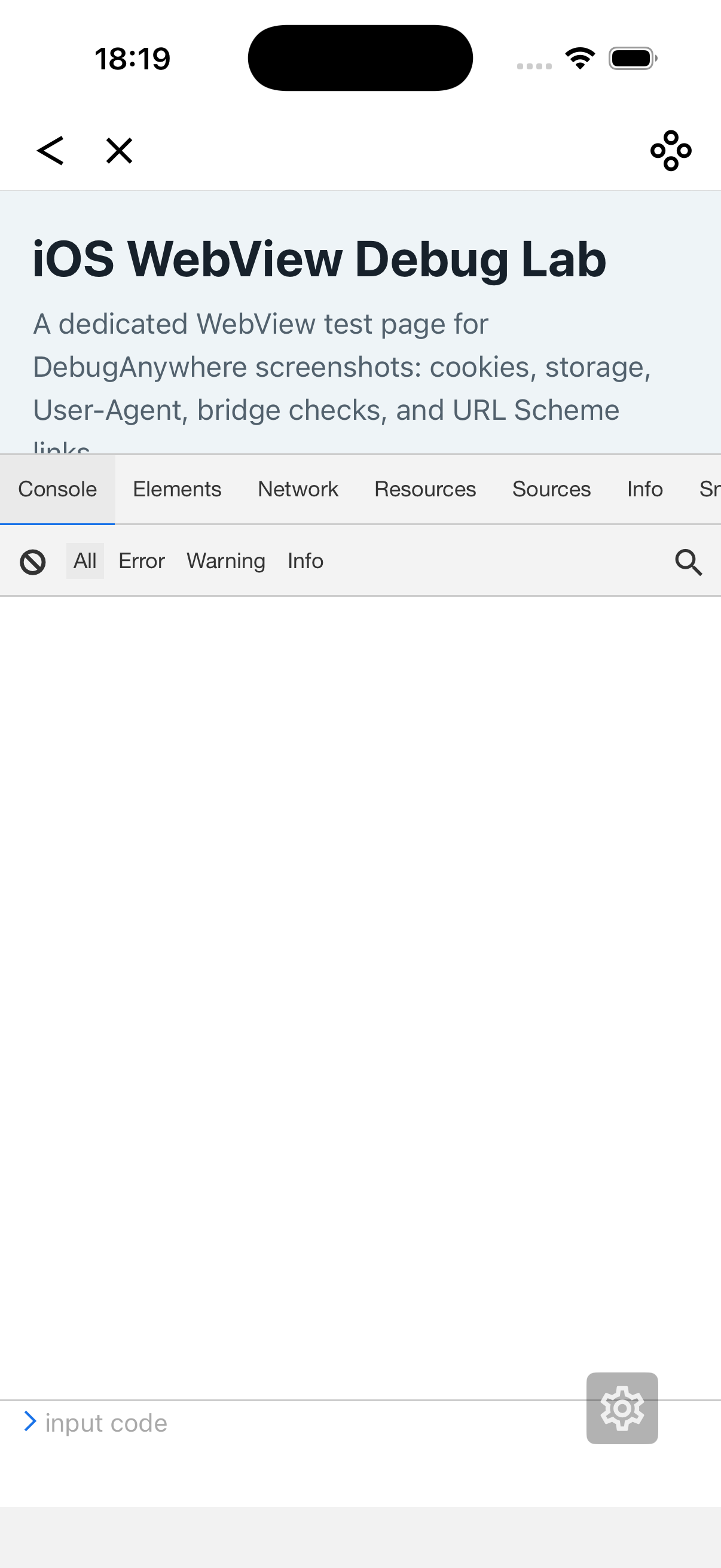
Quick answer: when should you inject JavaScript?
Inject JavaScript when you need temporary visibility or a controlled experiment on a real mobile page. Keep the script small, log the exact runtime state you are testing, avoid changing production data, and remove the script after the debugging session. Use injection to observe, compare, or simulate behavior, not as a permanent fix.
When JavaScript injection helps
- You need to log a variable that is only available on the phone.
- A WebView JSBridge method appears late or has a different name.
- You want to test whether a CSS or DOM change fixes a mobile layout issue.
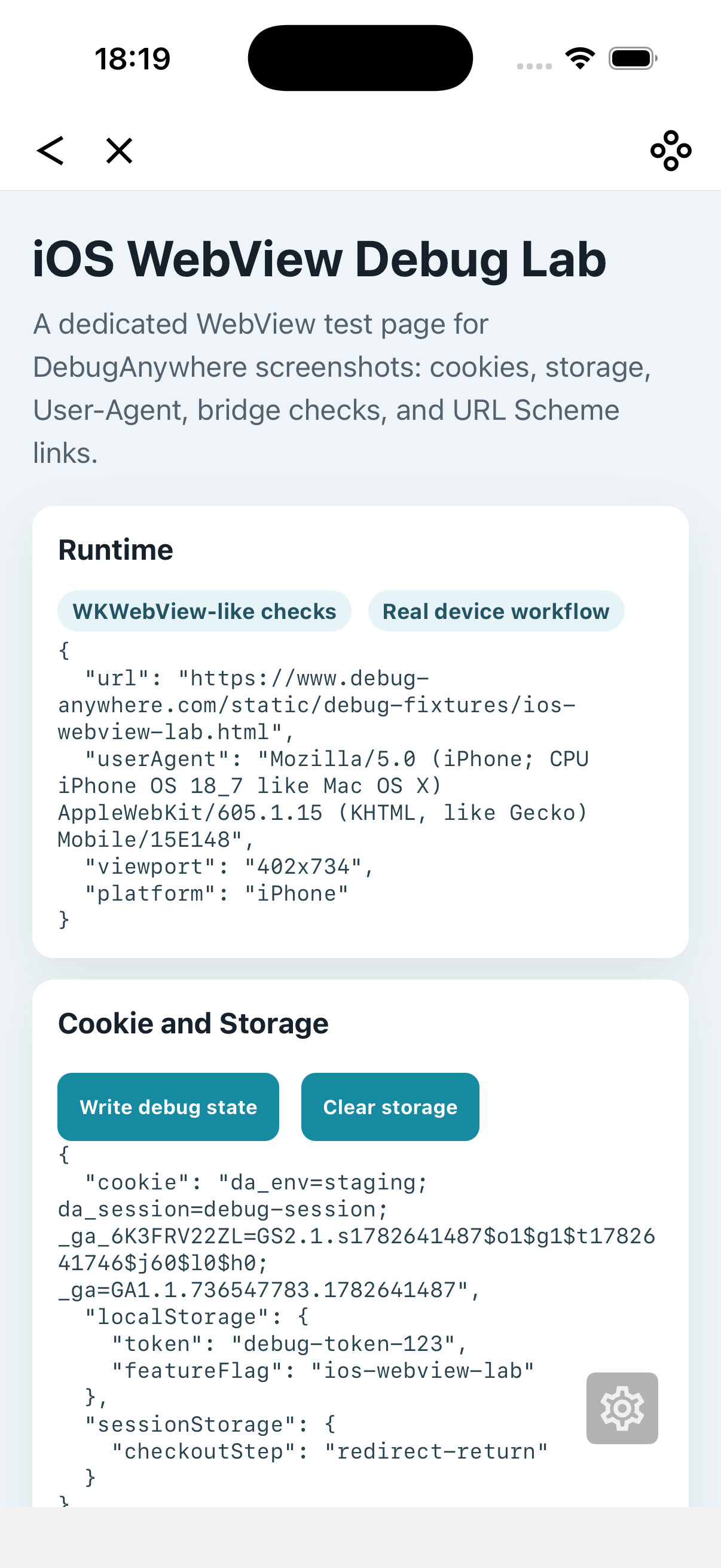
- You need to inspect cookies, storage, viewport, or route state after navigation.
- You want to simulate a native callback before the app team ships a new build.
Safe JavaScript injection workflow
1. Start with logging, not mutation
First collect facts. Log URL, User-Agent, viewport, cookies, storage keys, and bridge availability before changing the page. This keeps the first run clean and helps you avoid hiding the original bug.
console.table({
    href: location.href,
    userAgent: navigator.userAgent,
    viewport: innerWidth + 'x' + innerHeight,
    cookieLength: document.cookie.length
});
2. Run the script at the right time
Some checks must run before page scripts, while others need DOMContentLoaded or a completed route transition. If a WebView bridge appears after a native ready event, inject a listener and log both early and late states.
3. Make changes reversible
If you patch CSS, override a function, or write storage, include a clear cleanup step. Avoid modifying account data, orders, payments, or server-side state from a debug script.
4. Compare before and after
The strongest injection test has a before state, one small injected change, and an after state. If three injected changes happen at once, you will not know which one mattered.
Useful mobile debugging snippets
Log storage keys
console.log('localStorage keys', Object.keys(localStorage));
console.log('sessionStorage keys', Object.keys(sessionStorage));
Check JSBridge availability
console.log('webkit handlers', Object.keys(window.webkit?.messageHandlers || {}));
console.log('native bridge', window.NativeBridge || window.JSBridge || null);
Highlight fixed elements
document.querySelectorAll('*').forEach((node) => {
    const style = getComputedStyle(node);
    if (style.position === 'fixed' || style.position === 'sticky') {
        node.style.outline = '2px solid #ff3b30';
    }
});
Common injection failures
| Symptom | Likely cause | Fix |
|---|---|---|
| Script runs but sees empty DOM | Injected too early | Wait for DOMContentLoaded or route render |
| Bridge object is undefined | Native bridge is injected later | Listen for bridge-ready event and re-check |
| Bug disappears after injection | Script changed timing or state | Reduce the script to logging only |
| Storage changes persist | Debug script wrote long-lived values | Clear storage and use temporary keys |
JavaScript injection checklist
- Is the script small enough to test one hypothesis?
- Does it log the before state before changing anything?
- Does it run at the correct lifecycle timing?
- Can you clean up any storage, DOM, or function override changes?
- Did you avoid secrets, payments, and production data mutation?
- Did you remove the debug script after testing?
Inject debugging scripts on real devices
DebugAnywhere helps you open a mobile page, inject focused debugging scripts, inspect console output, check storage and cookies, compare User-Agent behavior, and capture real-device evidence without rebuilding the host app.